If you've chosen to use Hightouch as your ETL platform for HubSpot data integration, the next step is to set up your account! The steps are simple, but there are some nuances to keep in mind. Here's what you need to do.
Sign Up for an Account
-
Navigate to www.hightouch.com and click "Log in" on the top right of the website.
- Click "Sign Up" at the bottom of the page.
-
Create an account either with email and password or another sign-in option.
- Once your account is created, click "Continue to workspace".
Create Your Workspace
Now that your account is created, you'll be prompted to set up a workspace where data syncs will be set up.
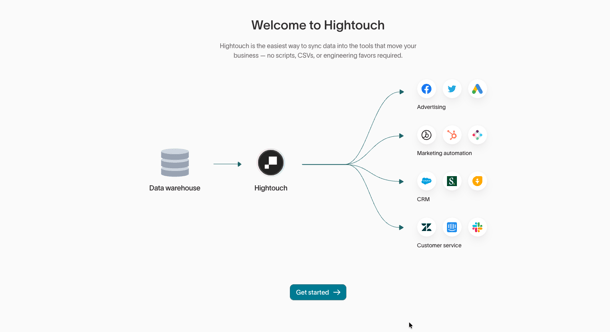
- Click "Get Started"
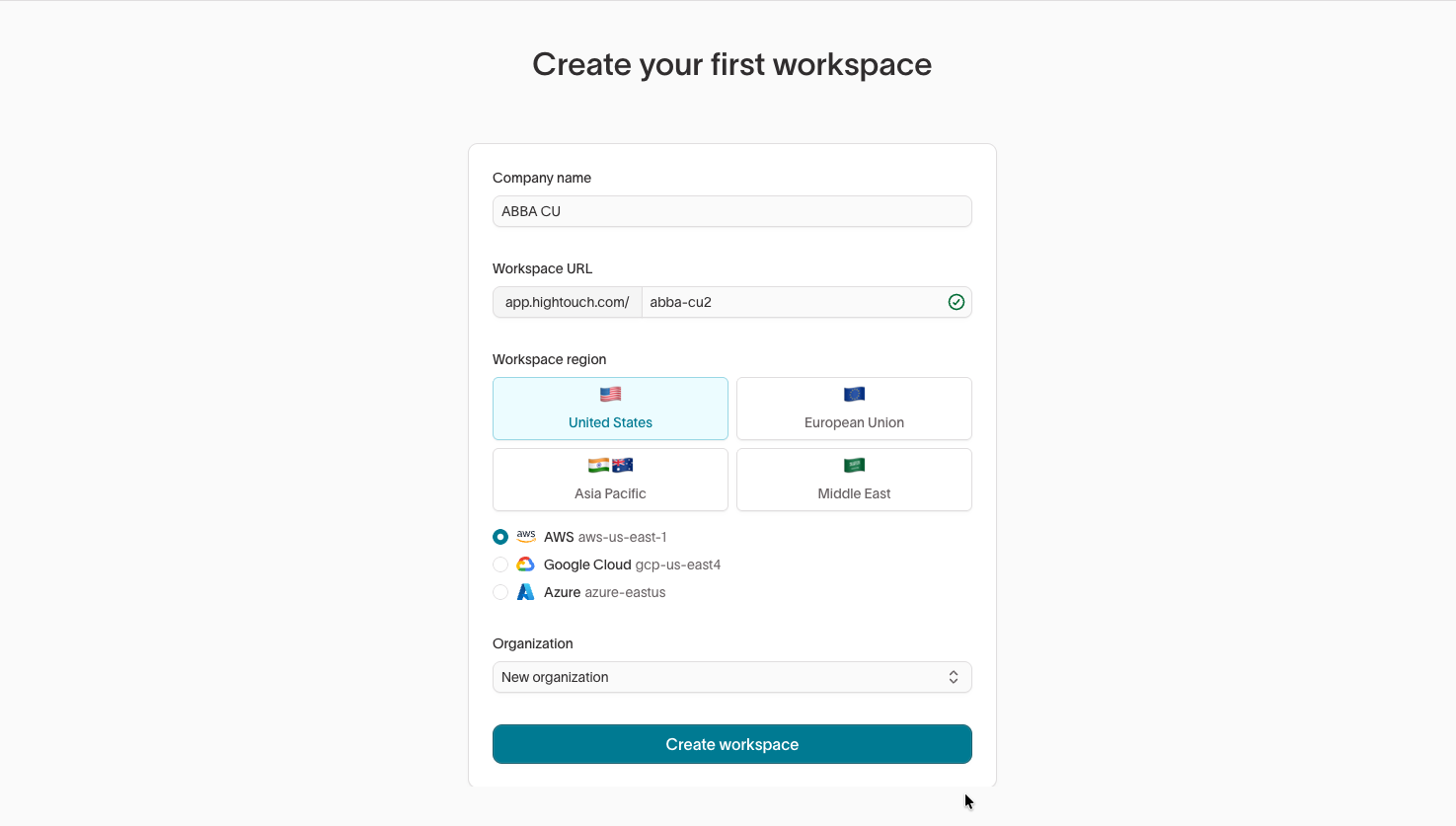
- Enter your company name and a workspace URL (ex. app.hightouch.com/abba-cu)
- Choose your workspace region, then select your preferred data storage service you'd like Hightouch to use. You don't need to own the data storage solution — you are simply telling Hightouch which of their existing data services to use for processing your data integration. Our clients typically use AWS for this step.
- Click "Create Workspace".
Add your Geear Team to the Account
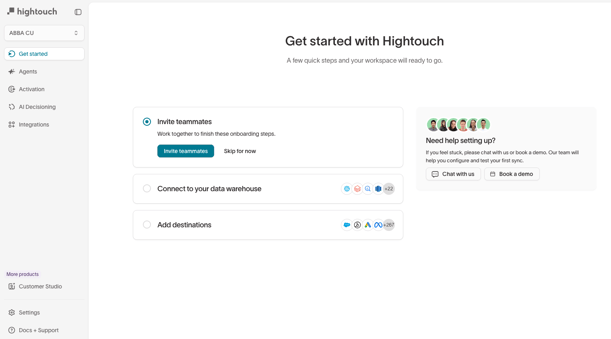
You'll be prompted to invite teammates to your workspace, and this is where our team comes in. Add your Geear HubSpot Strategist to the workspace as an Organization admin.
-
Click "Invite Teammates
-
Click "Invite user" in the top right of the screen.
- Enter your Strategist's email address and make sure to select "Organization admins" under "Assign to groups".
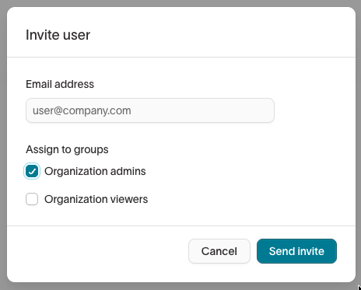
If you need to return to this screen later to add teammates, click "Settings" in the bottom left of your workspace, then "Organization" and "Users" at the top of the screen.
Set Up Your Subscription Plan
The next step is to go ahead and upgrade your plan to prepare for getting the data integration fully set up.
-
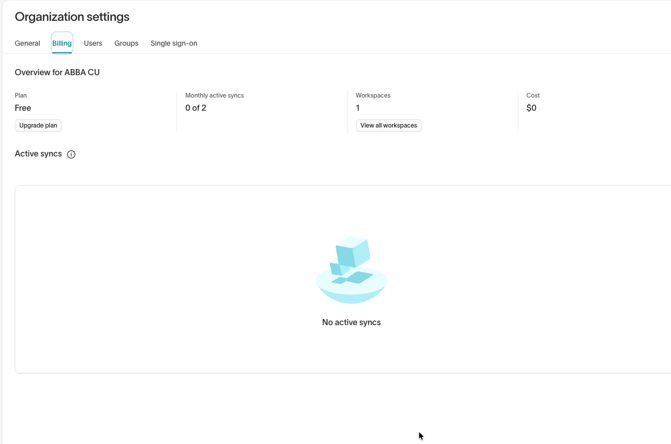
Click "Settings" in the bottom left of your workspace and select "Organization".
-
Choose "Billing" in at the top.
-
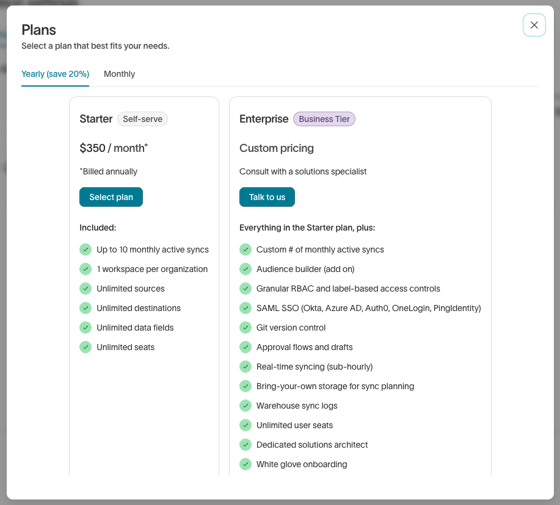
Here, you'll click "Upgrade plan".
-
Select the Starter plan and input your billing details.
Connect Your SFTP
The next step is to connect your SFTP where daily extract files will be stored.
-
Click "Integrations" on the left hand menu in your workspace.
- Click "Add source" in the top right.
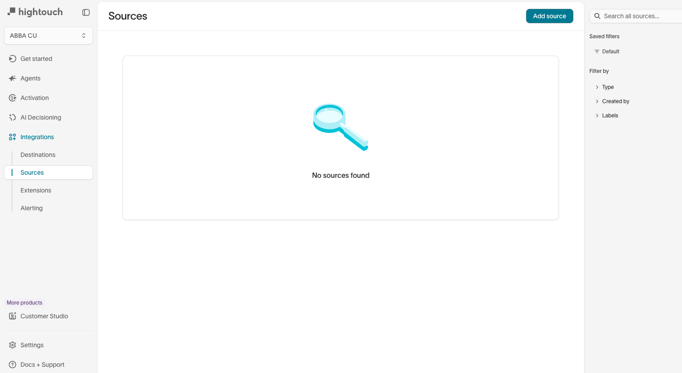
- Type in "SFTP" and select the option that appears.
- On this screen, enter your SFTP credentials and details, then follow the prompts to complete the connection.
- Ensure your SFTP will allow Hightouch to access the server from the respective IPs shown on this page.
Hightouch also has documentation available for more details on connecting your SFTP.
And you're done! Your Geear team will take it from here.

Ready for marketing that actually delivers?
Let's build something measurable together.
 Talk to the Team